The Complete Guide to Mastering the Grid Drawing Method
Who Uses CopyIt?
CopyIt is the essential grid drawing app used by creative professionals and hobbyists worldwide. Whether you're transferring a sketch to canvas, planning a mural, or teaching art fundamentals, CopyIt helps you achieve accurate proportions every time.
This guide provides detailed explanations of every feature, with practical examples for different creative disciplines.
Fine ArtistsIllustratorsTattoo ArtistsMosaic ArtistsMuralistsArt TeachersQuiltersSign PaintersStudentsHobbyists
Grid Drawing Theory
What Grid Drawing Is
Grid drawing is a method of breaking an image into smaller, manageable sections so you can transfer proportions more accurately. Instead of trying to draw the whole subject at once, you compare one square of the reference to the matching square on your paper, canvas, wall, or other surface.
The method reduces complexity. Large forms become simple relationships inside each cell: where a line enters, where it exits, how far it sits from an edge, and whether a shape curves, angles, or stays straight. This is why the grid method is valuable for both beginners and professionals working at scale.
How It Is Used
Choose a reference image and match it to your working surface using Media Sizes.
Set a grid size that matches your skill level and the amount of detail required.
Draw or prepare the same grid on your physical surface.
Work cell by cell, comparing positions, angles, and boundaries rather than guessing the whole image.
Use tools like Smart Move, Target Mode, Crosshair, Ruler, Tonal Strip, or ValueMap depending on whether you are checking proportion, alignment, measurement, value, or colour.
Why It Works
It converts a large visual problem into smaller visual decisions.
It improves proportion because each cell acts as a measuring frame.
It supports scaling up or down without losing structure.
It creates a repeatable process that is easy to teach and critique.
It helps professionals maintain accuracy on commissions, murals, mosaics, tattoos, classroom demos, and production work.
Example: Same Method, Different Professions
A fine artist may use the grid method to transfer a portrait to canvas, a muralist may scale a small concept sketch onto a large wall, a mosaic artist may assign tile placement cell by cell, and an art teacher may use labeled squares to guide a whole class through the same drawing step by step.
Getting Started
Quick Start Workflow
Load or photograph your reference image.
Select a Media Size that matches your paper, canvas, wall section, or working surface.
Choose a simple Grid Size first, then enable Grid Numbers.
Draw the same labeled grid on your physical surface.
Use Smart Move to progress cell by cell.
Use Crosshair or Ruler to check alignment and measurement.
Hide the grid occasionally to review the image as a whole.
Choosing the Right Grid
Use fewer cells for beginners, quick studies, and younger students.
Use more cells for large works, portraits, architecture, and detailed commissions.
Use Guidelines when you need extra reference points without fully increasing the main grid size.
Use Center Dots (enabled in Settings) or Cross Guides when center placement matters more than continuous grid lines.
Best Practice Workflows
For Accuracy
Check where lines cross the edges of a cell before drawing the full contour.
Use Grid Numbers so each area has a clear location.
Use Crosshair for horizontal and vertical alignment.
Use Ruler when actual measurements matter.
For Value and Colour
Use Grayscale, Tonal Strip, and ValueMap to simplify value structure.
Use Mosaic to see broader colour shapes.
Use TubeMatch for closest unmixed colours.
Use MixMap when you need blending guidance for paint mixtures.
Common Mistakes to Avoid
Using a grid that is too dense too early.
Forgetting to match the physical grid labels with CopyIt.
Judging colour before establishing proportion and value.
Ignoring the whole image until the end instead of stepping back periodically.
Measuring with the Ruler before selecting the correct Media Size.
Top Toolbar Features
Grid Type
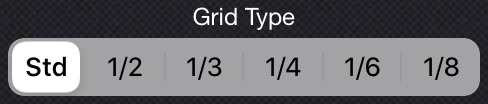
Choose one of six grid types: Std, 1/2, 1/3, 1/4, 1/6, or 1/8. The grid type determines how your reference image is divided and how you'll transfer proportions to your working surface.
Std (Standard) uses equal-sized square cells. 1/2, 1/3, 1/4, 1/6, 1/8 divide the image into 2x2, 3x3, 4x4, 6x6, and 8x8 rows and columns. Depending on the aspect ratio of the reference image, those cells may be rectangular rather than square. If you want center markers rather than relying only on full grid lines, use Center Dots in Settings.
Example: Portrait Painting
A portrait artist might switch from Std to 1/3 to divide the reference into a 3x3 structure, then decide whether that subdivision or a denser option gives the clearest placement cues.
Portrait ArtistsPhotographers
Grid Size
Control the number of columns and rows in your grid. More divisions mean greater accuracy but more squares to work through. Fewer divisions are faster but require more freehand skill within each cell.
Use the preset buttons (12×16, 6×8, 3×4) for quick setup, or tap Cols or Rows to enter exact numbers. The grid automatically adjusts to maintain proportion with your image.
When you use the Points option, the value is the size of each grid cell in points (not pixels).
Example: Beginner vs. Advanced
A student learning grid drawing might start with a 5×7 grid (35 cells) for a manageable introduction. An experienced muralist scaling up a detailed design might use 20×30 (600 cells) for precise architectural details.
Tip: Match your grid to your paper size for easy measuring. A 5×7 grid on Letter paper creates 1-inch squares. A 6×8 grid on A4 creates approximately 25mm squares.
Art StudentsMuralistsSign Painters
Columns
The Columns control lets you type an exact number of vertical grid divisions. Use it when presets are not precise enough for your paper, canvas, classroom exercise, or large-scale enlargement.
It works with Rows to create custom grid structures such as 5 by 7 for a beginner study or a much denser layout for production work.
Example: Lesson Setup
An art teacher enters 5 columns and 7 rows so the whole class can work on the same simple portrait grid without confusion.
Art TeachersMuralists
Guidelines
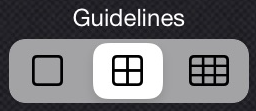
Add subdivision lines within your main grid cells. Guidelines divide each cell into smaller sections without changing your primary grid structure, giving you more reference points for complex details.
Configure the number of guidelines and choose between solid or dashed styles. Use Guideline Colors to set alternating colours that make it easier to distinguish guidelines from main grid lines.
Example: Detailed Illustration
An illustrator working on a detailed botanical drawing uses a 6×8 main grid, then enables 2 guidelines per cell. This creates subtle subdivisions for placing tiny details like leaf veins and flower stamens without cluttering the view with a massive 18×24 grid.
Botanical IllustratorsScientific Illustrators
Guideline Colors
Guideline Colors let you choose alternating colours for subdivision lines so they stay readable against complex references. This helps separate secondary guides from the main grid.
Example: Busy Colour Reference
A mosaic artist uses alternating guideline colours when planning a tiled portrait, making the subdivisions easier to read across light and dark colour areas.
Mosaic ArtistsDesigners
Dashed Guidelines
Dashed Guidelines switch subdivision lines from solid to dashed. This creates a cleaner visual hierarchy, keeping your main grid dominant while still giving you finer reference points.
Example: Subtle Detail Support
A portrait artist wants extra reference points around the nose and mouth but does not want the screen cluttered. Dashed Guidelines provide help without overpowering the image.
Portrait ArtistsIllustrators
Cross Guides
Display diagonal cross lines through the center of each grid cell. Cross guides help you locate the exact center of each square and identify where diagonal lines in your subject pass through each cell.
Example: Architecture Drawing
When drawing a building with angled rooflines, cross guides help you see exactly where the diagonal roof edge crosses each grid cell — making it much easier to replicate those angles accurately on your paper.
Architectural ArtistsUrban Sketchers
Mosaic
Transform your reference image into simplified colour blocks, averaging the colours within each mosaic tile. This helps you see the overall colour and value structure without getting lost in photographic detail.
Use Mosaic Size to adjust block size — larger blocks show broader colour areas, smaller blocks preserve more detail while still simplifying.
Example: Mosaic Tile Artist
A mosaic artist creating a tile portrait uses the Mosaic feature set to match their actual tile size. Each block in CopyIt represents one physical tile, showing exactly which colour tile to place in each position. Combined with TubeMatch, they can identify the closest tile colour from their collection.
Example: Painting Block-In
A painter uses Mosaic view during the initial block-in phase. Instead of being overwhelmed by photographic detail, they see simplified colour shapes that match how they'll lay down their first paint strokes.
Mosaic ArtistsPaintersPixel Artists
Mosaic Size
Mosaic Size controls how large each simplified colour block appears. Larger blocks emphasize broad masses and structure; smaller blocks preserve more detail while still reducing photographic noise.
Example: Tile Planning
A mosaic artist adjusts Mosaic Size until each on-screen block roughly matches the physical tile size they will place by hand, turning the image into a practical build map.
Mosaic ArtistsPixel Artists
TubeMatch
TubeMatch identifies the closest unmixed colour from your chosen paint or pencil set. Tap anywhere on your reference image, and CopyIt shows you which single tube or pencil from your selected medium best matches that colour — no mixing required.
First select your medium using Choose Medium, then enable TubeMatch and tap colours in your image. This is invaluable when you want to know "Which tube of paint should I reach for?"
Supported Media
Art Spectrum Oils
Faber-Castell Polychromos
Jo Sonja's Acrylic
Matisse Acrylics
Prismacolor Premier
Schmincke Gouache, Oils & Acrylic
Winsor & Newton Acrylic
Example: Coloured Pencil Artist
An artist using Faber-Castell Polychromos pencils taps on a skin tone in their portrait reference. TubeMatch shows "Light Flesh (132)" as the closest single pencil. They can start with that pencil knowing it's the best match from their set, then layer other colours for depth.
Choose Medium sets the paint or pencil family used by TubeMatch. It does not change MixMap's medium directly, because MixMap has its own interface for selecting the medium it uses for mixing suggestions.
Example: Switching Materials
An instructor switches TubeMatch from acrylic to coloured pencil before sampling colours for a pencil class. Later, when demonstrating paint mixing, they choose MixMap's medium inside MixMap itself.
Art TeachersPaintersColoured Pencil Artists
MixMap
While TubeMatch finds single unmixed colours, MixMap shows you how to blend multiple colours from the medium selected inside MixMap to achieve a closer match. Tap a colour in your reference, and MixMap suggests which paints to mix and in what proportions.
MixMap can also use TubeMatch ranges to suggest paint mixes, giving you a bridge between single-colour matches and mixed-colour recipes.
MixMap and TubeMatch are mutually exclusive — enabling one turns off the other. Use TubeMatch when you want single-colour convenience; use MixMap when you need precise colour matching and are willing to mix.
Example: Portrait Painter
A portrait painter taps on a shadow tone in their subject's face. The exact colour isn't available as a single tube, but MixMap suggests "70% Burnt Sienna + 20% Ultramarine Blue + 10% Titanium White" — a practical mixing recipe they can follow on their palette.
Note: Both TubeMatch and MixMap are guides to help you get started. Actual paint colours vary by brand, batch, and surface. Always test your mixes before committing to the final work.
Oil PaintersAcrylic PaintersGouache Artists
Disclaimer
The Disclaimer reminds users that TubeMatch and MixMap are guides, not guarantees. Brand variation, surface absorbency, lighting, layering, and mixing technique all affect the final colour on the artwork.
Example: Professional Practice
A commission painter uses MixMap to get close quickly, then tests the colour on scrap material before applying it to the final portrait. The Disclaimer reinforces that informed judgement still matters.
Commission ArtistsPainters
Tonal Strip
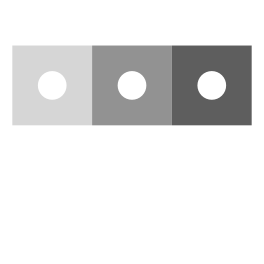
Display a strip of value swatches ranging from 0% (white) to 100% (black) in 10% increments. Each swatch has a hole in the center — position a hole over any area of your image to compare that area's value against the surrounding swatch.
The Tonal Strip helps you identify specific values in your reference, ensuring your drawing or painting has accurate tonal relationships. You can adjust the number of steps (6–13) in Settings.
Example: Graphite Drawing
A graphite artist positions the Tonal Strip hole over a shadow area and sees it matches the 70% swatch. They know to use a 4B or 6B pencil with firm pressure to achieve that value. Later, they check a highlight and see it's around 10% — a light touch with an H pencil.
Pro Tip: Enable the Grayscale filter when using the Tonal Strip. Removing colour makes it much easier to judge values accurately through the holes.
Instantly show or hide the grid overlay. Toggle the grid off to see your reference image clearly, check your progress, or simply take a visual break from the grid lines.
Example: Progress Check
After completing several grid squares, tap to hide the grid and compare your drawing to the clean reference. This helps you spot proportion errors that might be hidden when the grid is visible.
Grid Color
Choose the colour of your grid lines. Different images require different grid colours for visibility — a dark grid disappears on a dark image, while a light grid vanishes on bright areas.
CopyIt offers multiple colour options so you can always find a grid colour that contrasts well with your specific reference image.
Example: High-Key Portrait
When working from a bright, high-key portrait with lots of white and light tones, switch to a dark blue or black grid. For a moody, dark landscape, use white or yellow grid lines.
Move Grid
Move Grid lets you reposition the overlay so the grid aligns better with important landmarks in the reference. This can make measurement and square-by-square comparison easier.
Example: Landmark Alignment
A tattoo artist nudges the grid until key features such as an eye corner and nostril sit closer to helpful intersections, making stencil transfer more controlled.
Tattoo ArtistsPortrait Artists
Resize Grid
Resize Grid allows the overlay to be resized by dragging its edges. It is a practical way to fit the working grid more precisely to the subject or composition before you begin detailed transfer.
Example: Better Subject Fit
A painter resizes the grid so the main subject fills more of the active area and fewer cells are wasted on empty background.
PaintersIllustrators
Grid Numbers
Display coordinate labels on each grid cell. Labels use letters for columns (A, B, C...) and numbers for rows (0, 1, 2...), creating unique identifiers like A0, B3, C5 for every square.
When you draw a matching grid on your paper with the same labels, you can easily communicate positions: "Check cell D4" or "The eye is mostly in B2."
Example: Art Class
An art teacher displays CopyIt on a classroom screen. They can direct students: "Everyone look at cell C3 — notice how the edge of the vase curves. Now find C3 on your paper and draw that same curve." Grid numbers create a shared language for discussing specific areas.
Art TeachersWorkshop Instructors
Projects (New / Load / Save)
Save your work and return to it later. A project stores your reference image, grid configuration, zoom level, and all settings. You can maintain multiple projects for different artworks in progress.
New Project starts fresh. Save Project stores your current state. Load Project returns to a previously saved session with everything exactly as you left it.
Example: Long-Term Commission
A portrait artist working on a detailed commission over several weeks saves their project each session. When they return, all their grid settings, zoom position, and reference image are exactly as they left them — no time wasted reconfiguring.
Commission ArtistsHobbyists
Load Photo / Camera
Load Photo imports an image from your photo library as your reference. Camera captures a new photo directly. Either way, your chosen image becomes the reference you'll work from.
CopyIt supports high-resolution images, so you can zoom in without losing detail.
Example: Plein Air Setup
A landscape painter takes a photo of a scene they want to paint later in the studio. They load it into CopyIt immediately, set up their preferred grid, and save the project. Back in the studio, they load the project and begin their painting with the grid already configured.
Export
Export saves or shares your current image and setup for use outside the app. It is useful for printing gridded references, creating lesson materials, or sending planning images to clients and collaborators.
Example: Printed Handout
An art teacher exports the current gridded image and prints it so students can continue the exercise away from their devices.
Art TeachersWorkshop Leaders
Pencil Sketch
Apply a pencil sketch filter to your reference image, transforming it into a line-drawing style. This can help you focus on edges and contours rather than colour and detail.
Long-press the button for additional settings: blur, outline strength, contrast, exposure, grain, texture, and tint — allowing you to customize the sketch effect.
Example: Transfer Focus
A painter wants to transfer just the outlines of a complex scene without being distracted by colour. They apply the Pencil Sketch filter to see only edges, making it easier to draw clean contour lines before beginning to paint.
PaintersIllustrators
Music
Music opens the in-app music panel so you can control background listening while you work. For many users this helps establish a steady rhythm during longer drawing or painting sessions.
Example: Studio Flow
A hobby painter starts a calm playlist before beginning a long charcoal study, keeping focus inside one workspace instead of switching between apps.
HobbyistsStudio Artists
Settings
Settings is the control panel for CopyIt. Use it to adjust behavior, appearance, guide preferences, ruler appearance, numbering formats, Tonal Strip steps, and other details that shape your workflow.
Example: Classroom Preparation
An instructor configures numbering, Tonal Strip behavior, and visibility options in Settings before projecting the app, ensuring the interface matches the planned lesson.
Art TeachersPower Users
Right Toolbar Features
Smart Move
Navigate through your grid square-by-square with simple taps. Instead of manually zooming and panning, Smart Move lets you tap any cell to jump directly to it, automatically zooming to fill the screen.
Use arrow controls or tap cells to move systematically through your drawing, ensuring you don't skip any areas.
Example: Systematic Drawing
Working through a detailed portrait, an artist uses Smart Move to progress row by row. They tap cell A0, complete that section on paper, then tap the arrow to move to B0. This systematic approach ensures nothing is missed and helps maintain focus.
All Artists
Target Mode
When used with Smart Move, Target Mode highlights the currently selected grid cell while dimming the surrounding areas. This helps you maintain laser focus on the exact square you're working on.
Target Mode reduces visual distraction, making it easier to concentrate on shapes within a single cell without being pulled toward adjacent areas.
Example: Detailed Work
A tattoo artist designing a complex sleeve needs to focus on intricate details in specific areas. Target Mode highlights just the current section, preventing their eye from wandering to other parts of the design while they perfect each element.
Tattoo ArtistsDetail-Focused Artists
ValueMap
ValueMap displays a heat-map style overlay that groups your image's values into discrete tonal zones. This helps you see the overall value structure at a glance, making it easier to plan your painting or drawing.
Choose from 3, 5, or 7 zones — fewer zones create simpler groupings, more zones show finer value distinctions. Select a colour scheme: Heat (warm colours), Gray (grayscale), Earth (earth tones), or HC (high contrast). Adjust opacity to blend with your original image.
Example: Value Study Planning
Before starting a charcoal drawing, an artist enables ValueMap with 3 zones. They immediately see the image simplified into lights, midtones, and darks. This helps them plan their approach: establish darks first, then midtones, finally lift out highlights.
Example: Painting Underpainting
An oil painter uses ValueMap with 5 zones before beginning. They create a value underpainting that matches the zone structure, establishing a solid tonal foundation before adding colour. The ValueMap becomes their roadmap.
Pro Tip: Combine ValueMap with the Grayscale filter for even clearer value analysis — this removes colour distraction and lets you focus purely on light and dark.
PaintersCharcoal ArtistsArt Students
Filters
Apply image filters to your reference: Grayscale, Negative, Blur, Sharpen, Vibrance, Exposure, and more. Filters modify how you see the reference without changing the original image.
Grayscale removes colour for value studies. Negative inverts tones, sometimes revealing shapes you missed. Sharpen enhances edges for clearer detail.
Example: Value-First Approach
A painter following a value-first approach enables Grayscale to focus entirely on tonal relationships without colour distraction. Once their value structure is established, they disable Grayscale to see colours for the final painting phase.
All Artists
Image Aspect
Image Aspect helps you compare the shape of your reference image to the selected media ratio. It is useful when deciding whether to crop, resize, or preserve the current composition as-is.
Example: Canvas Match
A painter notices the reference is wider than the canvas they intend to use. Image Aspect reveals the mismatch early, so they can crop or recompose before transfer work begins.
PaintersDesigners
Resize Image
Resize Image scales the reference image inside the project. This is helpful when the subject needs to occupy more or less of the working area without changing the chosen media size.
Example: Sign Layout
A sign painter enlarges the lettering within the frame so the design fills more of the available space before it is transferred to the final board.
Sign PaintersDesigners
Crosshair
Display a movable crosshair overlay for checking vertical and horizontal alignment. Drag the crosshair to any position to verify that features line up correctly — are the eyes level? Does that horizon truly run straight?
Long-press for settings: adjust opacity for visibility against different backgrounds, thickness for prominence, and colour for contrast.
Example: Portrait Alignment
After blocking in a portrait, an artist uses the Crosshair to check if the eyes are level. They drag the horizontal line across both eyes — if one sits higher, they know to adjust their drawing before proceeding further.
Example: Architecture Check
An architectural artist uses the Crosshair to verify that vertical building edges are truly vertical in their drawing, catching perspective errors before they compound.
Portrait ArtistsArchitectural Artists
Ruler
A digital ruler overlay for measuring actual distances in your reference image. The ruler displays coordinates, length, and rotation angle. Requires a Media Size to be selected (except Device Screen and Custom modes) so measurements correspond to real-world dimensions.
Resize by dragging the right edge. Rotate freely, or enable 15° snap for common angles. Choose Imperial (inches) or Metric (mm). Customize ruler colours for visibility.
Ruler Display
Top-left and top-right coordinates
Length (e.g., "L: 11.4 in")
Rotation angle (e.g., "90°/90°")
Automatically maintains scale when zooming
Example: Scaling Verification
A muralist needs to scale up a reference to 10× size. They set Media Size to their final mural dimensions, use the Ruler to measure a key feature (like a figure's height of 6 inches in the reference), and verify it should be 60 inches on the wall. The Ruler confirms their grid calculations are correct.
Example: Proportion Check
A portrait artist measures the distance from hairline to chin (10 inches) and compares it to the width at the cheekbones (7 inches). These proportions help them verify their drawing matches the reference's actual measurements.
MuralistsSign PaintersScale-Dependent Work
Perspective Guides
Overlay perspective vanishing lines on your reference image. Choose 1-point, 2-point, or 3-point perspective and position the vanishing points to match your scene.
Long-press the button to select perspective type and reset positions. Adjust additional settings in the Settings panel on the left toolbar.
Example: Street Scene
Drawing a city street with buildings receding into the distance, an artist enables 2-point perspective. They drag the vanishing points to match the scene, then use the guide lines to ensure all building edges converge correctly.
Enter crop mode to select a portion of your reference image. Useful for focusing on a specific area or adjusting composition. You can also rotate the crop selection and choose preset aspect ratios that match common Media Sizes.
Use Apply to confirm, Cancel to abandon, or Revert to restore the original image after cropping.
Example: Composition Refinement
A photographer-turned-painter loads a landscape photo but realizes the composition would be stronger cropped tighter. They use Crop to reframe, selecting a 4:5 ratio that matches their canvas proportions.
Onion Skin
Show a negative outline drawing of your reference image through the camera view. Hold your device above your artwork to compare the live camera view against the outline and check accuracy as you progress.
Example: Accuracy Check Mid-Drawing
While working on a drawing, an artist lifts the device above the paper. The camera shows the work underneath with the negative outline of the reference overlaid, making proportion and placement errors visible before they become harder to correct.
IllustratorsAnimators
Flip & Rotate
Transform your reference image: Flip Vertical mirrors top-to-bottom, Flip Horizontal mirrors left-to-right, Rotate Image turns 90° at a time, and Rotate All rotates both image and grid together.
Flipping is a classic artist technique for spotting errors — mistakes often become obvious when you see the image reversed.
Example: Error Checking
After working on a portrait for an hour, an artist flips the reference horizontally. Suddenly they notice the mouth is slightly crooked — something they couldn't see before. They correct the error and flip back to continue.
All Artists
Bottom Toolbar Features
Media Sizes
Select your physical paper or canvas size from a comprehensive list of standard formats. This ensures your grid proportions match your actual working surface, and enables accurate measurements with the Ruler.
Options include Letter, A4, A3, various canvas sizes, and more. CopyIt shows the current media size and helps you verify that your image's aspect ratio matches your chosen surface.
Example: Canvas Matching
A painter has a 16×20 inch canvas. They select "16×20" from Media Sizes. Now their grid exactly matches their canvas proportions, and the Ruler shows real measurements they can transfer to their canvas.
All Artists
Media Info
Media Info shows the currently selected media preset or status. It is a quick confirmation point before measuring, cropping, or teaching from a shared setup.
Example: Production Check
A mural assistant checks Media Info before using the Ruler so they know the project is still aligned to the correct panel size.
MuralistsProduction Teams
Sound
Sound turns app sound effects on or off. This matters in quiet studios, shared workspaces, and classrooms where reducing distraction improves concentration.
Example: Quiet Classroom
An art teacher disables app sounds before a drawing exercise so repeated taps do not interrupt the room.
Art TeachersStudio Artists
Line Thickness & Opacity
Fine-tune the visual appearance of your grid lines. Line Thickness adjusts how bold the lines appear — thicker lines are easier to see but may obscure detail. Line Opacity controls transparency — lower opacity lets you see more of the image through the lines.
Example: Detailed Reference
Working from a highly detailed reference with fine textures, an artist reduces line thickness and opacity. The grid becomes a subtle guide rather than a visual barrier, letting them see intricate details while still having reference points.
Info
The Info button opens an information panel for the active control or current setup. It helps users understand a feature in context without leaving the working session.
Example: Independent Learning
A student exploring ValueMap opens Info to confirm what the setting does before asking for help, building more self-sufficient habits.
StudentsTeachers
Value Readout
Value Readout displays the current numeric value of an active control. This makes adjustments repeatable across projects, demonstrations, and lessons.
Example: Repeatable Setup
A teacher notes opacity and thickness values during one demo, then recreates the same setup later by watching the Value Readout instead of guessing visually.
TeachersPower Users
Zoom Presets
Zoom Presets define the maximum zoom range available for the slider and gestures. Lower presets suit broad composition work, while higher presets suit detailed inspection.
Example: Detail Session
A miniature painter sets the maximum zoom to 20x before painting ornate details so the full zoom range is available when needed.
Miniature PaintersDetail-Focused Artists
Zoom
Magnify your reference image to see fine details. Use the Zoom Presets (1×, 2×, 3×, 5×, 10×, 20×) to set the maximum zoom level, then use the slider or pinch gestures to zoom smoothly.
Higher zoom reveals details invisible at normal view — texture, subtle colour variations, fine edges. Essential for detailed work.
Example: Eye Detail
Painting the eyes in a portrait, an artist zooms to 10× to see the exact shapes of highlights, the subtle colour variations in the iris, and the precise curve of the eyelid. This level of detail makes the difference between a good eye and a great one.
Detail-Focused ArtistsMiniature Painters
Lock Toolbar
Disable most toolbar buttons to prevent accidental changes. Once you've configured your grid perfectly, lock the toolbar so you can't accidentally tap something while drawing.
This is especially useful on smaller screens where accidental taps are more likely, or during long drawing sessions where you want to eliminate any chance of disrupting your setup.
Example: Long Session Protection
Three hours into a detailed drawing, an artist has their grid configured exactly right. They lock the toolbar so that an accidental brush of the screen won't change their grid size, colour, or any other setting.
Hide/Show Toolbar
Hide all toolbars for a clean, distraction-free view of your reference image. Tap again to bring the toolbars back. Useful when you want to focus entirely on your subject without any interface elements.
Example: Whole-Image Check
A painter hides the interface while comparing the full reference to their in-progress work, making composition and balance easier to judge.
Support & Sharing
Share CopyIt
Share CopyIt sends a link to the app so you can recommend it to friends, students, or collaborators. It is useful when you want a group using the same tool and terminology.
Example: Workshop Preparation
A workshop leader shares the app link with students before class so everyone arrives with the same tool installed and ready to use.
Art TeachersWorkshop Leaders
Review CopyIt
Review CopyIt opens the App Store review flow so users can rate the app and leave feedback. Reviews help other creative professionals decide whether the app fits their workflow.
Example: Specialist Feedback
A muralist leaves a review explaining how CopyIt helps with scaling and measurement. That sort of profession-specific feedback is useful to other large-format artists.
Professional ArtistsLong-Term Users
Email Developer
Email Developer gives users a direct way to report issues, ask workflow questions, or suggest improvements. This is especially valuable for niche use cases that are not fully covered in general documentation.
Example: Niche Workflow Request
A quilt designer using CopyIt to enlarge block patterns sends a feature suggestion after discovering a workflow need specific to fabric-based projects.
QuiltersSpecialist Users
Help
Help opens the quick reference guide for CopyIt. Use it when you need a reminder of what a button does or when you are still learning the layout of the app.
Example: Fast Clarification
A student notices the Perspective Guides button but cannot remember its purpose. Help gives a quick explanation without interrupting the whole class.
StudentsNew Users
Tips
Tips surfaces quick workflow ideas and technique reminders. It helps users discover feature combinations that are not always obvious from the button names alone.
Example: Useful Pairing
A beginner learns from Tips that Grayscale and Tonal Strip work well together, improving value studies immediately.
BeginnersSelf-Taught Artists
Tutorial
Tutorial opens the in-app tutorial webpage for more guided learning. It is useful when users want structured instruction rather than brief reference notes.
Example: First Project
An art student new to the grid method opens the Tutorial before starting their first project so they understand both the method and the app workflow.